ol.mg-steps{list-style:none!important;counter-reset:mgstep;margin:1.6em 0;padding-left:0!important}ol.mg-steps>li.mg-steps__item{counter-increment:mgstep;list-style:none!important;padding-left:0!important;padding-bottom:1.4em}ol.mg-steps>li.mg-steps__item:last-child{padding-bottom:0}ol.mg-steps>li.mg-steps__item>:last-child{margin-bottom:0}ol.mg-steps>li.mg-steps__item>.mg-steps__title{margin:0 0 .25em;font-weight:600}ol.mg-steps>li.mg-steps__item>.mg-steps__title::before{content:counter(mgstep) “. “;opacity:.45;font-weight:500;font-variant-numeric:tabular-nums}ol.mg-steps>li.mg-steps__item:not(:has(.mg-steps__title))::before{content:counter(mgstep) “. “;opacity:.45;font-weight:500;font-variant-numeric:tabular-nums}.mg-kpis{display:grid;grid-template-columns:repeat(auto-fit,minmax(140px,1fr));gap:14px;margin:1.5em 0}.mg-kpi{padding:1em .9em;border:1px solid #e5e7eb;border-radius:12px;background:#f9fafb;text-align:center}.mg-kpi__value{display:block;font-size:1.7em;font-weight:800;line-height:1.15;color:#111827}.mg-kpi__label{display:block;margin-top:.35em;font-size:.85em;color:#6b7280;line-height:1.35}
To create a free online 2D floor plan, choose a tool accessible in a browser, draw the walls to scale, add doors and windows, arrange the rooms, then export or share the result. The real challenge is not drawing four lines: it is capturing consistent measurements and knowing the limits of the chosen service.
A house, apartment, or single room plan can thus be made without installing heavy software. Free offers generally allow drawing walls, adding openings, and producing an image or a PDF, while the mandatory account, number of projects, and export quality vary from one tool to another.
| 📐 | Objective: to represent a dwelling, a room, or a layout viewed from above. |
| 🌐 | Access: an editor usable in the browser avoids installing a program. |
| 📏 | Accuracy: walls and openings must reflect measurements taken on site. |
| 🚪 | Useful elements: doors, windows, stairs, radiators, and main equipment. |
| 📄 | Output: an image is used for quick sharing; a PDF is better suited for printing or sending. |
| ⚠️ | Limit: a free plan helps prepare a project but does not replace a professional survey for technical work. |
Which tool to choose to create a free online 2D floor plan?
An appropriate tool should allow drawing dimensioned walls, inserting doors and windows, then retrieving a readable document without charging for each essential function. The displayed free status is therefore not enough: you must distinguish access without registration, free account, available credits, and truly open export formats.
However, offers do not all work the same way. RunPlan highlights house plan creation in the browser, while HomeByMe requires creating an account to start. Remplanner also offers free use with login or registration. The required account thus depends on the service, not on the principle of online 2D floor plans.
| Need | Suitable solution | Point to check |
|---|---|---|
| Quickly draw a dwelling | Manual editor in the browser | Access without installation and project saving |
| Arrange a room | Tool with furniture and resizable objects | Library usable without subscription |
| Explore variants | Automatic generator or assisted tool | Number of credits and control of produced dimensions |
| Send a plan | Service offering image or PDF | Watermark, resolution, and free download |
For a house or apartment, ArchiFacile announces a plan search between 50 and 100 m². Ideal House allows selecting from 0 to 4 bedrooms and from 1 to 3 bathrooms in its generator. These parameters serve to explore an idea; they do not replace a measured survey room by room.
A beginner who mainly wants to arrange their interior will save time with a tool with integrated furniture. For a dimensioned plan intended to communicate measurements, dimensioning and export matter more than the sofa catalog.
To compare access, accuracy, and export criteria, also see this free 2D house plan software: the most pleasant tool to look at is not necessarily the one that produces the best document.
How to take measurements before drawing the plan?
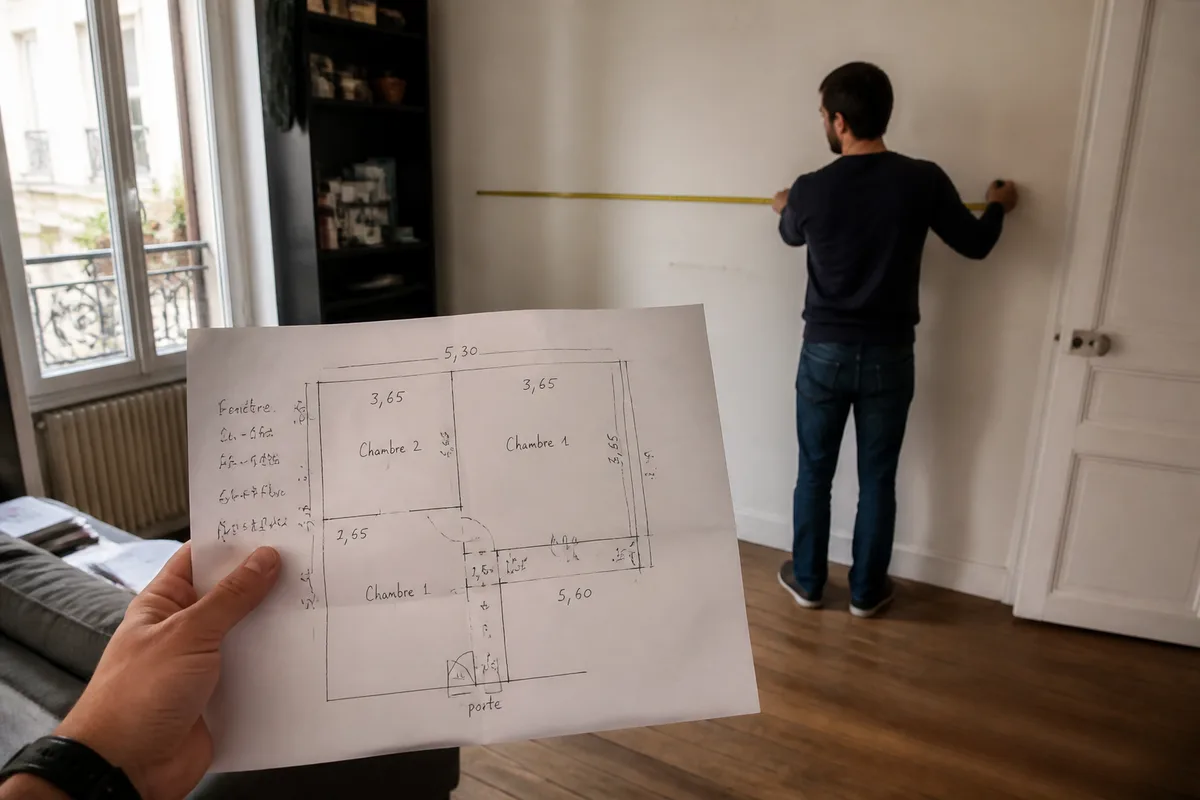
A proper survey starts with walls and openings, not the virtual sofa. Note the length and width of each room, the approximate thickness of the walls, the position of doors, the width of windows, and fixed equipment. A paper sketch then allows keeping the general shape before inputting data.
But a single measurement is not enough to reconstruct a dwelling. For each room, note the lengths of walls in the same direction, then measure the distance between the corners and each opening. Add the ceiling height only if the tool is also used to prepare a 3D view. For a 2D plan, it does not affect the floor geometry.
- Use a single unit throughout the entire input: meters, centimeters, or millimeters.
- Write each measurement directly on the sketch, with an arrow indicating the concerned wall.
- Identify fixed elements: staircase, duct, radiator, drainage, chimney, or pillar.
- Measure the diagonals of an irregular room to locate a corner that is not right-angled.
An old room may have slightly misaligned walls. Do not force its shape into a perfect rectangle if the goal is to place a kitchen, partition, or furniture to the nearest millimeter. The drawing must represent the actual dwelling, not a cleaner version of it.
A concrete example helps to understand the logic: if a wall measures 4.20 m and a window starts 80 cm from the left corner, enter 4.20 m for the wall, then place the opening 0.80 m from that point. The width of the window is entered as a second measurement. Mixing the starting distance and the opening width shifts the entire following wall.
How to create the 2D plan online, step by step?
Manual creation follows a simple sequence: open a project, choose the unit, draw the outer envelope, add partitions, place openings, then arrange and dimension. Each step produces a verifiable result before moving on to the next; this discipline prevents correcting a piece of furniture when the initial wall is wrong.
And if the tool offers automatic generation, keep it for a first proposal. Manual drawing offers direct control over lengths and junctions; generation based on criteria produces a base to be revised, not a reliable survey.
Step 1: open the project and set the unit
Create an empty project, select the metric system, and choose a plan view. Name the file with the dwelling and the survey date, for example apartment-flower-street-2026-09-30. The expected result is an identifiable document in which a length entered in meters is not mixed with a value in centimeters.
If the editor offers a grid, activate it only after setting its spacing. A visual grid helps align walls, but it never replaces a numerical dimension.
Step 2: draw the outer contour
Draw the exterior walls from the sketch, starting from a clearly identified corner. Enter the lengths one by one and close the contour before adding the interior rooms. At the end, the envelope must return to its starting point without visible gaps or overlaps.
But do not correct a forced closure by arbitrarily stretching the last wall. If the four sides do not close, review the measurements or identify the duplicated value entered. A closed polygon based on a wrong length will give false areas with a perfectly clean appearance.
Step 3: add the interior partitions
Add partitions based on the distances noted between the peripheral walls, then attach each end to an existing wall. A correctly drawn room forms a closed area and maintains clean junctions at the corners. The expected result is a dwelling divided into coherent spaces, without floating lines in the middle of a room.
For a partition separating a bedroom and a corridor, do not start from a piece of furniture or a visual axis: use the measurement taken from the reference corner. Line, room, or polygon tools do not all behave the same; keep the one that preserves surfaces and walls when you move an element.
Step 4: place doors, windows, and circulation
Insert the doors into the walls that support them, indicate their width, and choose the opening direction when the software allows it. Place the windows according to their distance from the corners, then draw the stairs and essential passages. The expected result is a clear circulation: each opening belongs to a wall and does not overlap with another.
A poorly positioned interior door can make an attractive layout completely impractical. Represent its swing if the tool allows it; in a small bedroom, this indication immediately reveals whether the bed or wardrobe blocks access.
Step 5: Furnish the rooms with furniture
Add only the furniture that serves to test the volumes: bed, sofa, table, worktop, sink, shower, bathtub, and bulky appliances. Resize them based on their actual or measured dimensions. A room seems large as long as it is empty; furniture highlights impossible passages right away.
However, the object catalog remains a visual aid, not proof of feasibility. A generic piece of furniture may have a different depth than the purchased model, and an appliance sometimes requires a technical clearance absent from the drawing. Keep secondary decorative elements for the end.
Step 6: Dimension, save, and prepare for export
Add the dimensions of walls, rooms, and openings, then name each space. Save the project before changing views or exporting. The file must present a known length, identifiable rooms, and understandable openings, without decoration that masks useful information.
For a specific method with SketchUp, the input principle differs from a classic plan editor: this drawing a 2D plan with SketchUp details the use of this environment. Simply do not mix a volume modeling method with the tools of a planner designed for floor plan drawing.
How to check the scale and accuracy of the plan?
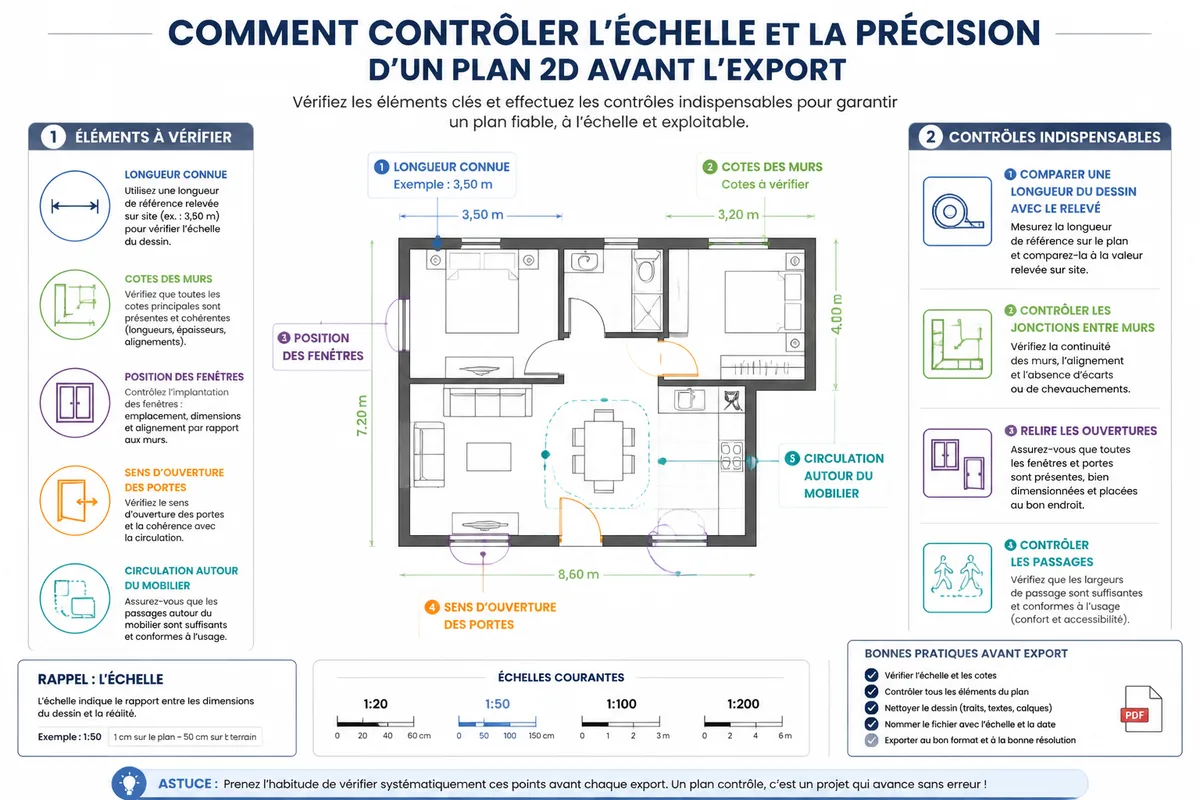
A 2D plan is usable when the displayed dimensions correspond to the entered measurements and the rooms close correctly. Check a known length, a room width, and the position of at least one opening. If a value of 3.50 m was entered in a unit configured in centimeters, the drawing must represent 350 units and not 3.50 units.
Proportionality is the decisive check: a known length measured in the drawing must match the entered value after conversion between meters, centimeters, or millimeters. A false dimension of 10 cm on a wall can be enough to move a door, reduce a passage, and make the kitchen layout misleading.
- Compare an exterior length with the paper survey.
- Check that each room has an area consistent with its sides.
- Examine the junctions between exterior walls and partitions.
- Review the position of windows relative to the corners.
- Check the swing of doors and the passage around furniture.
An area announced by the software is only a calculation based on the drawn geometry. If the walls were entered out of square or if their thickness is not treated the same way everywhere, the displayed area does not correct anything. It gives the result of the drawing, including when the drawing is poor.
For a work dossier, distinguish a layout plan from an execution plan. The first shows an organization of spaces; the second must include the technical information necessary for the site, with building constraints and appropriate validations. A load-bearing partition, a staircase modification, or an intervention on networks goes beyond simple decorative use.
Which formats to export and how to save the file?
The image is suitable for quick sharing or a real estate listing, while the PDF is better suited for printing and sending. Some services also offer DXF, IFC, measurement sheet, or illustrated report outputs. The right format depends on the recipient: a person who wants to understand the layout does not need a CAD file.
Thus, the PDF maintains a readable layout for a client or a sales file. The DXF targets computer-aided design software; the IFC is used for interoperability with digital model tools. An image remains the simplest solution when the recipient only needs to view the layout of the rooms.
| Format | Concrete use | Limit |
|---|---|---|
| Image | Quick sharing, messaging, advertisement | Less practical for measuring or modifying |
| Printing, sending, readable file | Options sometimes limited in the free offer | |
| DXF | Import into CAD software | Useless if the recipient does not have the appropriate tool |
| IFC | Exchange with a digital model | Technical format reserved for specialized uses |
| Measurement sheet | Table of dimensions and quantities | Does not replace on-site measurement verification |
Before leaving the editor, download a local copy of the exported file and keep the original project in its native format. A platform may limit storage, change its offer, or make an old project difficult to retrieve. The local copy is not elegant; it is simply cautious.
To go further on the use of drawing in construction exchanges, this content on understanding the use of 2D plans places the document within communication between stakeholders.
What limits should you know about with a free 2D plan?
A free tool is suitable for preparing a layout, visualizing a dwelling, or sharing an idea. It becomes insufficient when the project requires technical precision, regulatory justification, structural modification, or a document compatible with professional software. The free access concerns the service, not the project validation.
But commercial limits can also interrupt ongoing work. An offer sometimes announces a reduced number of projects, watermarked exports, generation credits, or a restricted library. MakePlan announces two free projects at the time of observation; Ideal House associates some advanced functions with credits. These conditions concern their own offers and may evolve.
Common mistakes that distort a plan
Errors rarely come from the drawing button. They appear when the survey is incomplete, the user confuses appearance with measurement, or saves only on the platform. Here are the pitfalls that are most costly to correct.
- Measuring only the length of the walls. Without the position of openings, doors and windows are placed by guesswork. Record their distance from each reference corner.
- Drawing the furniture first. Furniture can give a false impression of space and push to distort the walls to fit it in. Build the geometry of the dwelling before the layout.
- Mixing units. A length entered in meters amid values in centimeters produces a disproportionate plan. Choose the unit at the start and keep it.
- Confusing 3D view with technical precision. A pleasant rendering shows volumes, not the quality of the survey. Dimensions must be checked in the dimensioned 2D view.
- Keeping only one copy online. A storage limit or account modification can make the file inaccessible. Export an image or a PDF as soon as an important version is finished.
Another common confusion often returns: “If the software automatically calculates the area, the plan must be correct.” No. The calculation is exact relative to the drawn lines; it does not know if these lines correspond to the actual wall, its thickness, or the measurement taken on site.
Importing an old plan and protecting your data
An old scanned or photographed plan can be used as a background to redraw walls, provided at least one reliable dimension is known to set the scale. An image slightly distorted by perspective should not serve as the sole reference; it helps to find the layout, then the real measurements take over.
Now an online plan contains the layout of a dwelling, sometimes its address, its occupancy habits, and information about access. Avoid entering unnecessary personal data, use a separate password for the account, and remove the full address from the shared file when it is not needed. For an occupied dwelling, share a simplified copy rather than the full survey.
When should you stop digital DIY?
A free plan is enough to prepare furniture placement, discuss a layout, or compare two arrangements. It is not sufficient to validate an opening in a load-bearing wall, a staircase modification, a network relocation, or a technical file involving a professional’s responsibility.
In this case, do not send the drawing as a construction instruction. Provide it as a discussion aid, with the measurements taken and the points still uncertain. A competent person must examine the actual building before any decision on structure, electricity, gas, or loads.
For a simple layout plan, do it yourself. For a document intended to carry out technical work, use the right tool and have the document validated: a pretty drawing will never prevent a misplaced partition from becoming a bill.
FAQ on creating a free 2D plan online
Can you use a tablet or phone to draw a 2D plan?
Yes, a browser-based editor can work on a tablet or phone. Entering lengths and precisely placing openings remain more comfortable on a large screen with a mouse.
Can a free file be used to prepare a building permit?
It can help explain the project’s intent, but an administrative file requires documents suited to the nature of the work and applicable rules. A layout plan exported as a PDF does not automatically become a regulatory document.
The next step is simple: take a sheet, note the walls and openings of a single room, then test input in a free editor before drawing the entire dwelling.